Open OnDemand Web Portal
DeepThought’s web portal is based on theOpen OnDemand platform developed by the Ohio Supercomputer Center.
In addition to providing the functionality described on the Using The Web Portal page, the Open OnDemand platform also offers the ability for experienced users to create their own web applications and to act as a secure reverse proxy to compute nodes using websockets.
Passwordless Web-based Shell Access
The DeepThought Shell Access app prompts for passwords every time a new window is opened which can be quite cumbersome if you’re used to using passwordless SSH as many of our experienced users do. The Shell Access app does support passwordless access but because it runs from the same server that you’re connecting to via SSH it can be a bit unintuitive to get working.
To begin with, log into a shell on DeepThought (either through the Shell Access app or via SSH in a terminal) and generate a new SSH key-pair (see RHEL’s instructions if you’re unfamiliar with the process).
Note
If you set a passphrase on the new key you will be prompted to enter the passphrase each time you connect. Omitting the passphrase will allow the connection to be established without any prompting but is slightly less secure
Once you’ve generated a new key-pair, you can run ssh-copy-id localhost to add the public part of the key to the ~/.ssh/authorized_keys in your profile and key-based SSH should start working the next time you launch the Shell Access app.
Important
Utilising this method will not generate the credentials required to access the R Drive automatically.
Custom Web Applications
In addition to the system-based web applications such as Jupyter and VS Code that we provide, you can also make your own user-based applications that are only available to you.
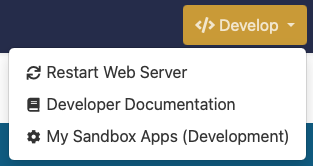
Custom applications are stored in your home directory under the ondemand/dev directory structure and as soon as the dev folder is created the web UI will enable the Dev tools in the nav bar:
Tip
The system-based OOD apps are located in /var/www/ood/apps/sys/ if you want to copy them as a starting point for your own (e.g. to tweak the submission parameters available to the VS Code web app)
The web applications can be quite complex (see the Open OnDemand documentation) but in general the main files you’ll need to adjust are below:
form.yml- The web app submission form page (e.g. where you select partition, cores, memory, etc)manifest.yml- The information about the web app displayed in the portal (e.g. Name, category, etc)submit.yml.erb- The connection parameters to send to SLURM to submit the jobview.html.erb- The parameters for the ‘Connect to’ button in Interactive Appstemplate/after.sh.erb- The shell script to run after the web app has finished runningtemplate/before.sh.erb- The shell script to run before the web app startstemplate/script.sh.erb- The shell script to run to start the web app
Tip
When running web apps via the dashboard you have access to use the ood partition in SLURM
Note
A list of configurations of software that other institutions have published is available on the Open OnDemand Enabled Applications site.
Reverse Proxy via Websockets
One of the functions that enables the web apps to work is the use of Websockets to provide a reverse proxy to connection to web servers running on the compute nodes using the Open OnDemand server as a relay. The configured web apps do all of the work to set up the configuration automatically but it’s also possible to manually connect to services that have been initialised separately in SLURM.
Once you’ve started your module that includes a web server via SLURM (which may be easiest with an interactive session so you can see what it’s been set up on) you can use the following URL format to connect via reverse proxy:
https://hpc.flinders.edu.au/reverse-node/server-fully-qualified-name/port e.g. https://hpc.flinders.edu.au/reverse-node/hpc-comp005p.it.ad.flinders.edu.au/12345
Note
Connecting to a compute node through this method requires an active Okta authentication session to Open OnDemand so you may need to log into the portal before connecting to a proxied server