Working with Files
The DeepThought HPC uses a combination of dedicated local storage on the login server, a clustered file storage system shared from each of the compute nodes and connections to central network storage such as the R Drive.
Danger
The data drives on DeepThought are all considered ‘volatile’ and are not backed up so if you accidentally delete data or we experience a hardware failure then we won’t be able to recover the data.
If your data is important and you cannot afford to lose it, please ensure that you have additional copies of your data saved in other locations as well as on DeepThought.
Web Portal
DeepThought has a Web Portal (based on the Open OnDemand platform) available through your Okta Dashboard as ‘DeepThought HPC’ that can be accessed from both the Campus Network and the Internet.
The Web Portal features both web-based File Access and limited command-line terminal access to the Login Server. It uses regular web traffic to move files and is suitable for smaller file operations but for larger transfers we’d recommend other methods such as Secure Copy through the Login Server.
Login Server
In addition to the Web Portal, DeepThought is also available to connect to directly via Secure Shell (SSH) to deepthought.flinders.edu.au but you’ll need to be on the Flinders Campus Network (including on Wi-Fi) or use VPN if you’re off-site.
Note
Campuses such as Festival Tower, Tonsley and the rural sites such as Renmark, Mt. Gambier, etc. are all directly connected to the campus network so you shouldn’t need to connect to the VPN if you’re located there.
Connecting to DeepThought through SSH will place you on a dedicated Login server with the same type of hardware as the compute nodes (albeit with less CPUs and RAM). You can also use Secure Copy (SCP) or rsync to copy files directly to the file storage on DeepThought from your own computer.
HPC Home Directory
Your home directory is automatically shared between the web portal, login server and all compute nodes and has a maximum quota available of 50GB per person. We intend for your home directory to be used to hold any job submission scripts, job error/output logs and small software packages that you’ve compiled yourself.
Your home directory can be found in the following location:
/home/hpc/<your_fan>
e.g. if your FAN was fan1234 then your home directory would be /home/hpc/fan1234 (you can also use the $HOME variable or the ~/ shorthand in the terminal or scripts)
Network Resources - R and T drives
The login server automatically maps folders that you have access to in the R (Research) and T (Teaching) drives from the central file servers. Please note that these mappings only work on the login server as the folders are not mounted on the individual compute nodes.
To make the network locations easier to access, symbolic links have been created at /RDrive and /TDrive which are available both through SSH and from the Files web application in the Open OnDemand portal.
Once your jobs are complete we strongly recommend moving the appropriate data outputs that you need to keep to the R drive as the folders there are backed up on a regular basis.
Important
You will only be able to access the contents of the network drives if you connected to DeepThought via SSH using a password and you may also potentially need to access the top level (e.g. /RDrive) directory in the command line before it is available in Open OnDemand’s File Browser.
Note
If you’ve set up passwordless login using certificates then the system will not generate the credentials needed to sign into the file servers and the /RDrive and /TDrive folders will not work unless you manually initialise a Kerberos ticket to the ISD.AD.FLINDERS.EDU.AU domain once logged in.
Clustered Storage
The compute nodes in the cluster contain groups of storage drives which are clustered together into a single distributed file share mounted at /cluster on both the Login Server and Compute Nodes.
For those of you familiar with previous iterations of DeepThought, this effectively combines the volumes of /scratch and /cluster together into a single larger volume.
Clustered Temporary Storage - User Scratch Space
In addition to your home directory, a directory specific to your account is also created under /cluster/scratch/<your_fan>. This location is where we intend for you to temporarily stage larger files that you need to work on as part of your jobs (e.g. copy them from the R Drive or via SCP before you submit your jobs via SLURM).
A symbolic link of scratch (e.g. ~/scratch) will be automatically created in your home directory to your scratch directory.
Important
The scratch space will automatically remove any files that haven’t been accessed after 28 days. We are hoping that this will be enough to keep storage available for everyone to use but if we find that people are using a disproportionate amount of space we will implement a more aggressive cleanup on a per-user basis.
One thing to note is that if you’re rsyncing data into your scratch folder from off the cluster with the time preservation flags set you may find them purged if their last access time is greater than 28 days. We’re specifically looking at the access time (can be viewed via stat <filename>) rather than the modified time for the cleanup so as long as you’re actually using the files they shouldn’t be purged.
Clustered Temporary Storage - Temporary Job Working Space
Whenever you submit a job through SLURM, a temporary working space for that job is created under /cluster/jobs/<job_number>. You can use the $BGFS variable in your SLURM submission scripts to refer to the directory on a per-job basis.
These folders don’t have quota limits (genomics pipelines in particular often generate terabytes of output while they’re running) but the working folders are automatically cleaned up after each run to ensure that there’s enough space for everyone else’s jobs. Please make sure you’re copy your outputs somewhere else as part of your scripts or you’ll lose them when the job finishes.
Important
The temporary job working space will automatically remove any files that haven’t been accessed after 28 days.
Semi-Persistent Storage - Datasets, Groups, Labs and Projects
In addition to the temporary storage on the clustered file system mentioned above, we are also providing persistent storage with enforced quotas for shared resources that will be used by multiple people to help reduce duplication of data.
Persistent storage will be available upon request for the following:
Datasets - Shared data that will be used by multiple areas that do not have a formal association
Groups - Working groups that are not necessarily part of the same Lab or Project but need some form of shared storage
Labs - Lab-specific storage
Projects - Storage for shared data focused on a specific Project
Access to this form of persistent shared storage will be managed through Active Directory and will require a Data Management Plan. The Library has more resources available about DMPs on their Research Data page: https://library.flinders.edu.au/researchers/research-data
The persistent storage has slightly lower performance than the clustered storage but has higher fault tolerance and also supports more features such as quota management and metadata tagging.
Warning
While the persistent storage file system isn’t subject to file cleanup like the clustered temporary storage, it is still considered volatile. Please do not store the only copies of the data you have in this space.
Once you have a Data Management Plan for your data or project you can request Persistent Storage by logging a Service One request with the IDS Research Success team.
Transferring Files to DeepThought
The process for transferring files to DeepThought will change slightly depending upon your OS and where you’re located. Thankfully, there are some excellent tools that take this from ‘potentially-scary’ to ‘click a button or two’.
Before we start, ensure that you have read the Storage Overview & Usage Guidelines.
Note
Most file transfers are performed using the Secure File Transfer Protocol (SFTP) or Secure Copy Protocol (SCP) but other tools such as rsync can also be used. This guide will focus upon the GUI based tools, using SFTP.
Command Line File Transfers
Just about all modern operating systems include the OpenSSH client which allows for files to be transferred using SCP.
The quick version is that you can substitute your filename, FAN and Password, type scp <FILENAME> <FAN>@deepthought.flinders.edu.au:/home/hpc/<FAN> then hit enter.
You will need to enter your password when prompted and if this is your first time connecting to the cluster you will be prompted to accept the certificate of the server (see Connecting to DeepThought).
This will put the file in your home directory on DeepThought. The command will look something like the following when substituted accordingly) similar to:
Linux/macOS:
scp /home/test1234/file.txt test1234@deepthought.flinders.edu.au:/home/hpc/test1234Windows:
scp C:\users\test1234\file.txt test1234@deepthought.flinders.edu.au:/home/hpc/test1234
You can also reverse the order of the command to download files back down from DeepThought e.g. scp test1234@deepthought.flinders.edu.au:/home/hpc/test1234/file.txt /home/test1234/downloads/.
Tip
You can substitute your home folder in the examples for any path that you have write access to such as your scratch directory
Graphical File Transfers
In addition to using the command line, you can also use software with a graphical interface such as FileZilla or WinSCP.
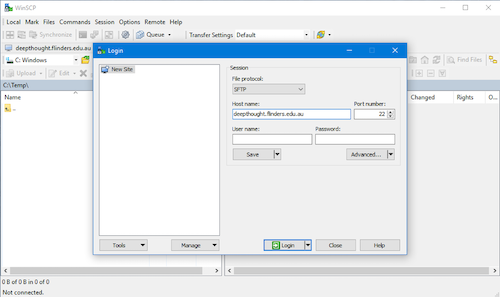
Using WinSCP as an example, enter deepthought.flinders.edu.au as the host to connect to, and click Login. You should have a screen that looks like this.
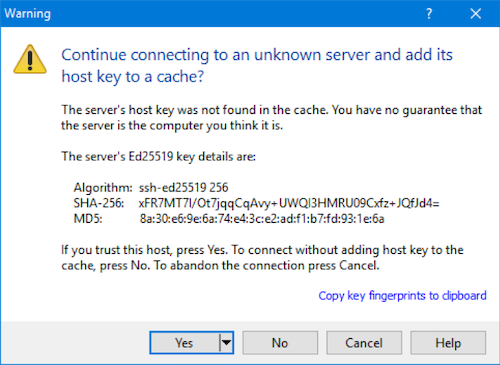
The first time you connect up you will get a warning - this is fine, just click YES to continue on.
A connection to Deep Thought will then be created. If all goes well, you will be treated to this screen:
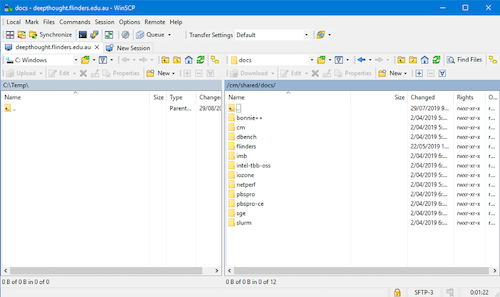
You can now drag and drop files between your computer (Left-hand side) and DeepThought (Right-hand side).