Using the Web Portal
The web portal in DeepThought is built on the Open OnDemand platform developed by the Ohio Supercomputer Center.
Getting Started with the Web Portal
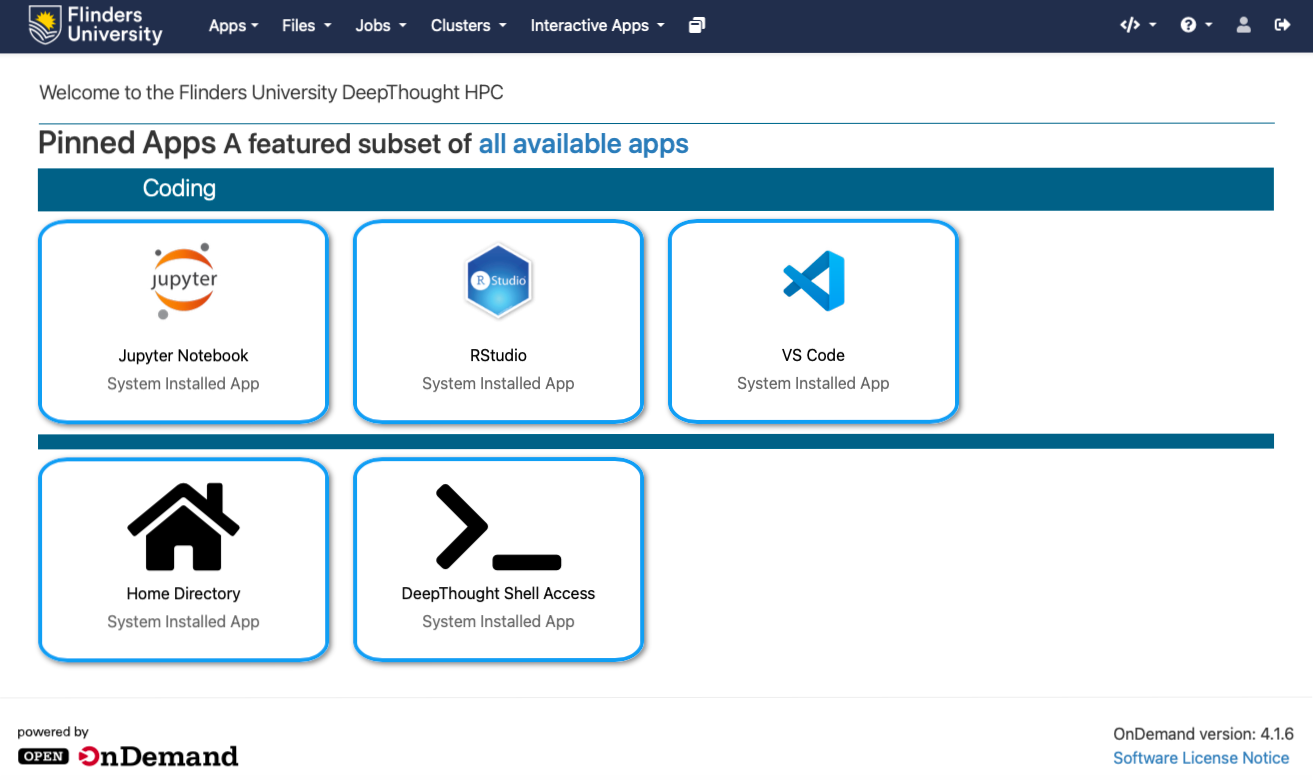
Once you’ve connected to the Web Portal, you’ll be presented with the default dashboard view:
Web-based Shell Access
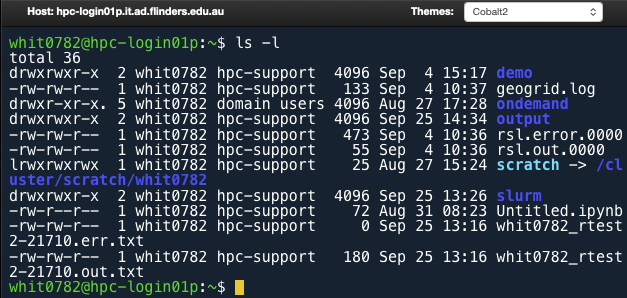
DeepThought’s Web Portal includes a fully featured shell that you can use to interact directly with the Login Node of the cluster through the DeepThought Shell Access app pinned on the dashboard (also available in the Apps or Clusters menus in the navigation bar).
The web shell features full syntax highlighting and supports multiple themes which can be changed and will be remembered per-browser:
Tip
The web-based Shell client can be accessed directly through the DeepThought Shell Access link (requires Okta login)
Web-based File Access
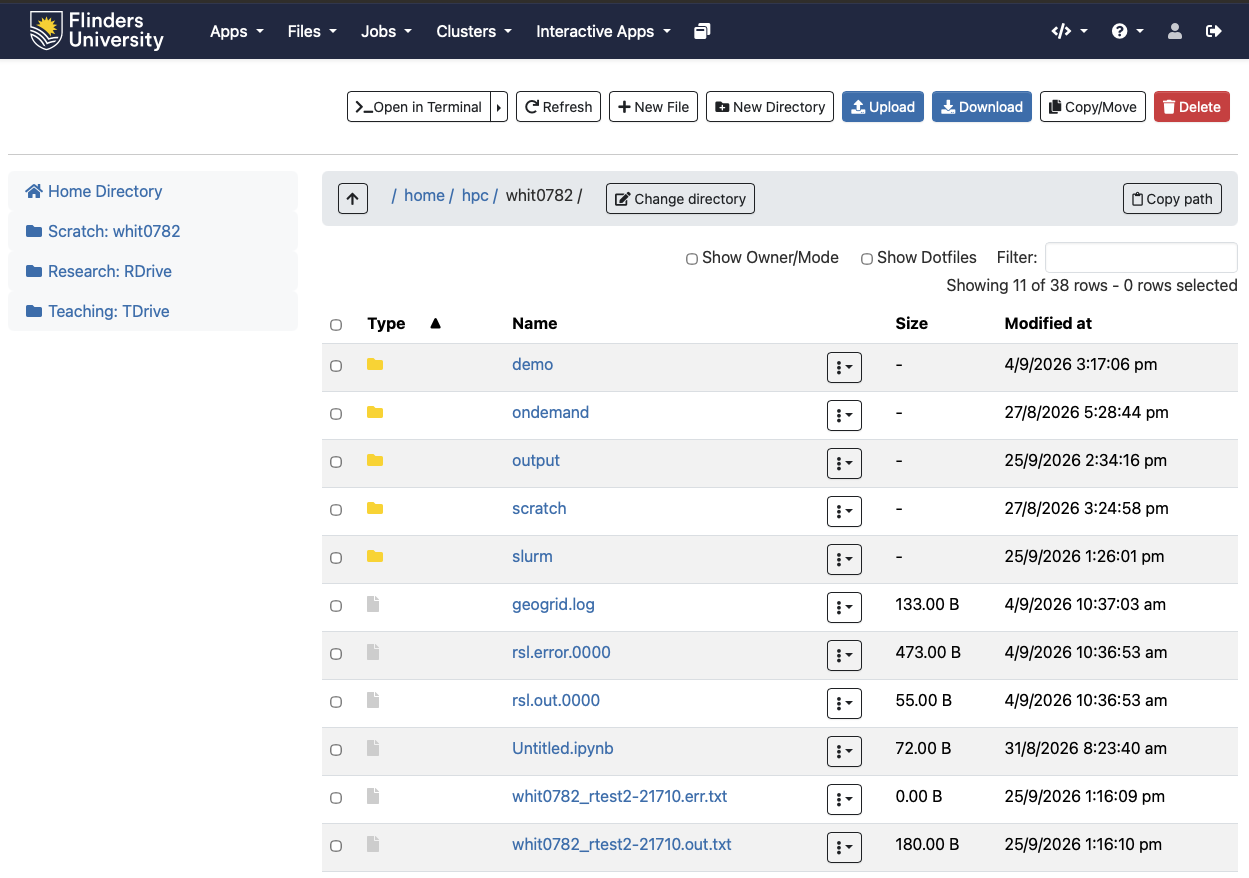
Open OnDemand also includes a web based File Browser that can be used to manage your files on DeepThought. To access it you can either choose the Home Directory tile pinned to the main dashboard or launch it from the Apps menu in the navigation bar at the top of the dashboard.
Once it loads in, you’ll be presented with a view of what’s in your Home Directory:
To make things a bit easier we’ve automatically pinned a few folders to the navigation bar under the Files drop-down menu (along with the side bar in the actual app):
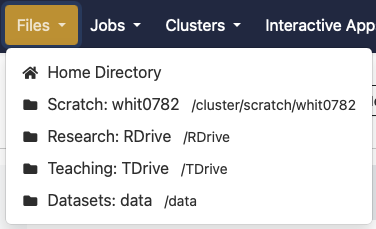
The pinned locations go to the following folders (which update dynamically based on the logged in user):
Home Directory (
/home/hpc/<fan>)Scratch: <fan> (
/cluster/scratch/<fan>)Research: RDrive (
/RDrive)Teaching: TDrive (
/TDrive)Datasets: data (
/data)
If you want to access your Home directory directly via URL the format is below:
https://hpc.flinders.edu.au/pun/sys/dashboard/files/fs/home/hpc/<fan>
Important
The web file browser’s access to the R Drive and T Drive rely on having valid credentials (generated when you log in using your password) and also need the mount point to have been visited once before the file browser can access the contents of the share.
You can initialise both by opening the DeepThought Shell Access app in the web portal, logging in with your password and then changing to the top level directory you want to view in the file browser e.g. cd /RDrive/CMPH-GenomicsDB
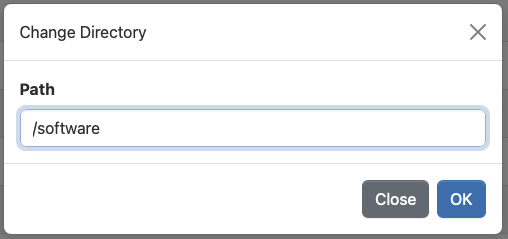
In addition to the pinned directories, you can use the path bar at the top of the list to change locations. You can either select any of the segments of the current path (including /) to go there immediately or you can use the Change Directory button to manually enter the full path you want to go to e.g. /software:

If you need to quickly jump into a terminal located in the current directory you can use the >_Open in Terminal button in the menu bar above the path bar:

Note
The maximum file size for transfer via the web file browser is 10GB
Web Applications
We have several pre-configured web applications available for you to use through the portal which will automatically submit a request to SLURM in the background:
Jupyter Notebook
RStudio
VS Code
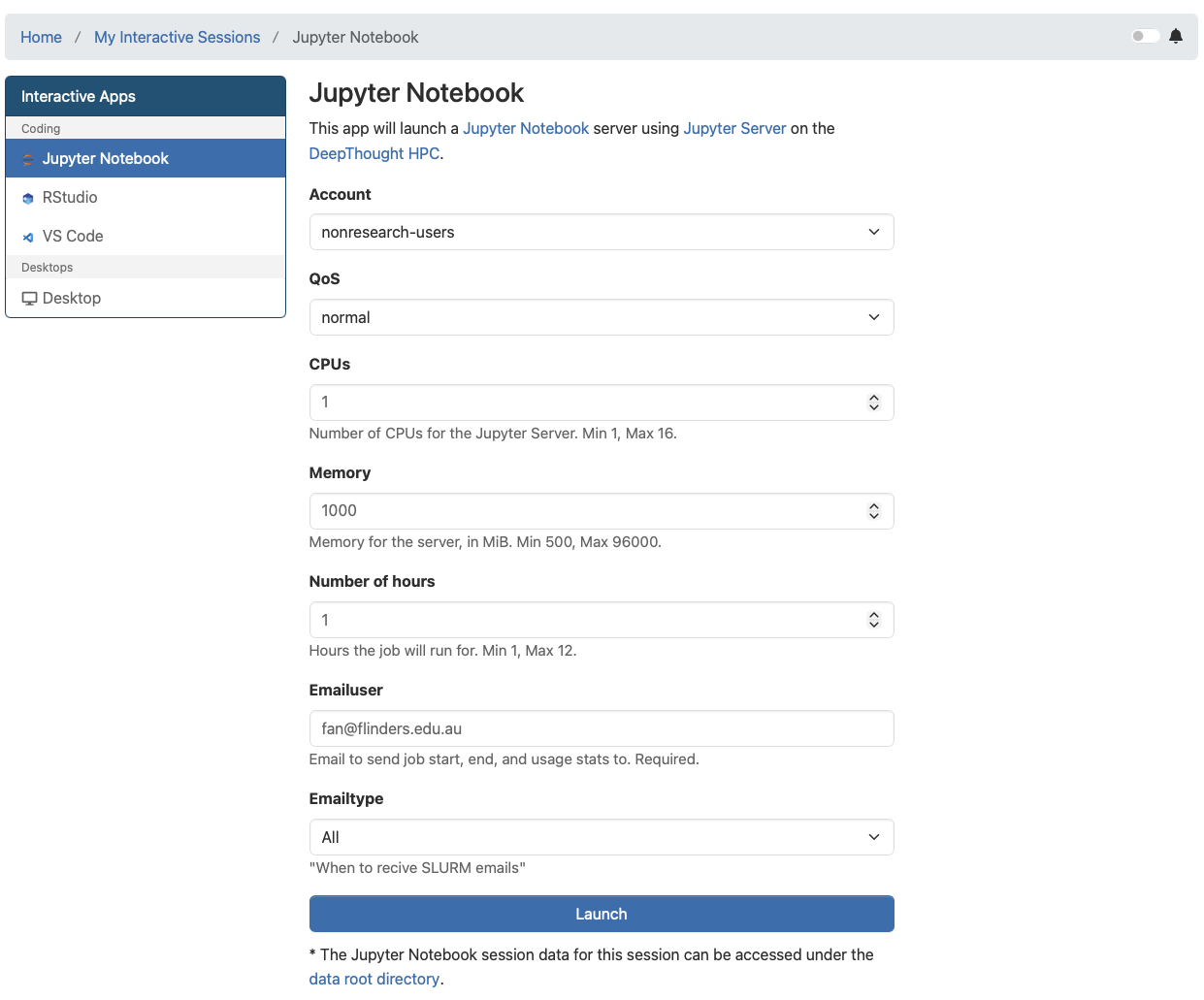
The first time you launch them you’ll be prompted to enter the resources you want for the job and Open OnDemand will remember what you’ve entered for subsequent launches:
Tip
After the first submission, if you select the app from the ‘Recent Apps’ section of the main dashboard it will automatically resubmit another session with the same parameters as your previous session
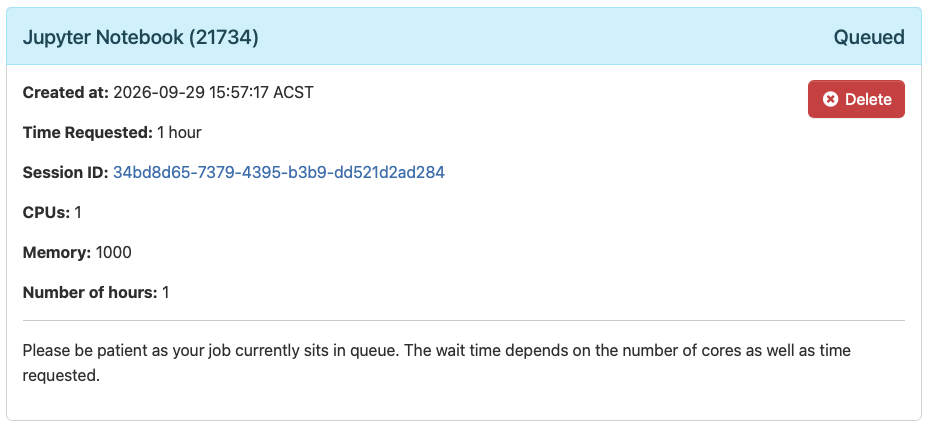
Once you select the Launch button you will be taken to the My Interactive Sessions screen and will be shown the status of the job while it’s queued and waiting for resources to be allocated:
Tip
You can view your interactive sessions through My Interactive Sessions in the top navigation bar from anywhere in the web portal
Once the app has been allocated resources, the session info will update to show you which compute node it has been allocated to and how many resources were allocated:
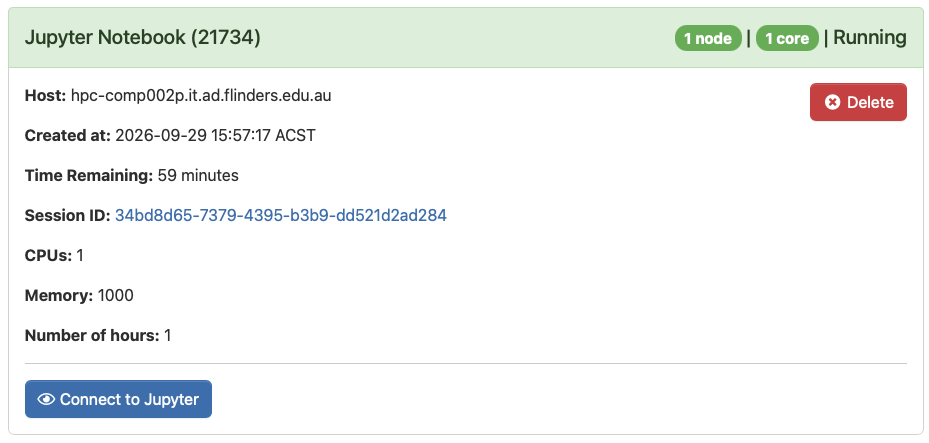
Selecting the Launch <appname> (in this example it’s Jupyter Server) button will connect you to the Jupyter server running on the compute node:
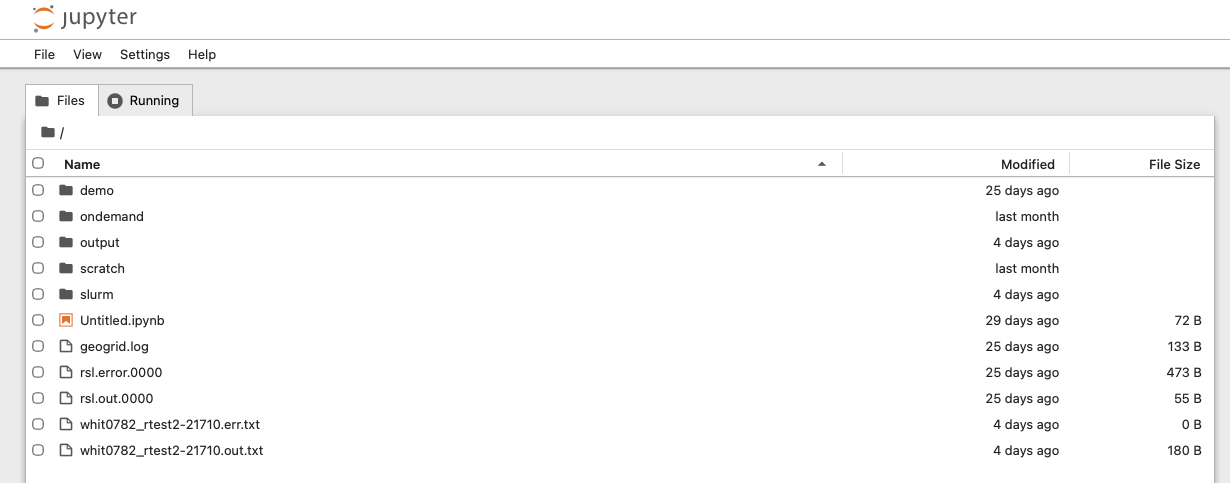
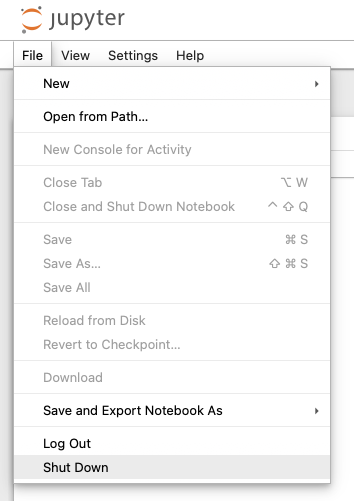
Some apps like Jupyter are natively aware that they’re running through SLURM and will automatically shut down the server and release the resources when you choose the Shut Down option:
Other apps like VS Code and RStudio require you to use the Delete button on the My Interactive Apps page once you’re finished using them to return the resources (unless you let the session time out):

Note
The apps in the web portal use a special queue that only permits them to run for 12 hours at max