Connecting to DeepThought
This article covers the process of connecting to the DeepThought HPC at Flinders University through the Open OnDemand Web Portal via Okta along with how to use Secure Shell (SSH) on Microsoft Windows, Apple macOS and Linux/UNIX.
Remote Access to DeepThought
If you need to access DeepThought directly while you’re off-site, you’ll first need to connect to the Flinders University Virtual Private Network (VPN) which uses Cisco’s Secure Client software. More details are available on the Flinders Website at the following page: https://staff.flinders.edu.au/workplace-support/digital-services/network-access#remote
DeepThought uses the Open OnDemand platform to provide secure web-based access to resources through Okta. The web portal provides easy access to interactive apps such as Jupyter Notebooks, VS Code and RStudio along with access to your Files and the command line interface for more complex tasks.
DeepThought’s text-based command-line interface can also be accessed directly through the Secure Shell (SSH) protocol as long as you’re on the main campus network.
Connecting to the Open OnDemand Web Portal
You can access the Open OnDemand Web Portal from your Flinders Okta Dashboard using the DeepThought HPC tile or via the URL https://hpc.flinders.edu.au (which will redirect you to Okta to log in):

Once logged in, you will have access to the standard Pinned apps along with any recently used apps:
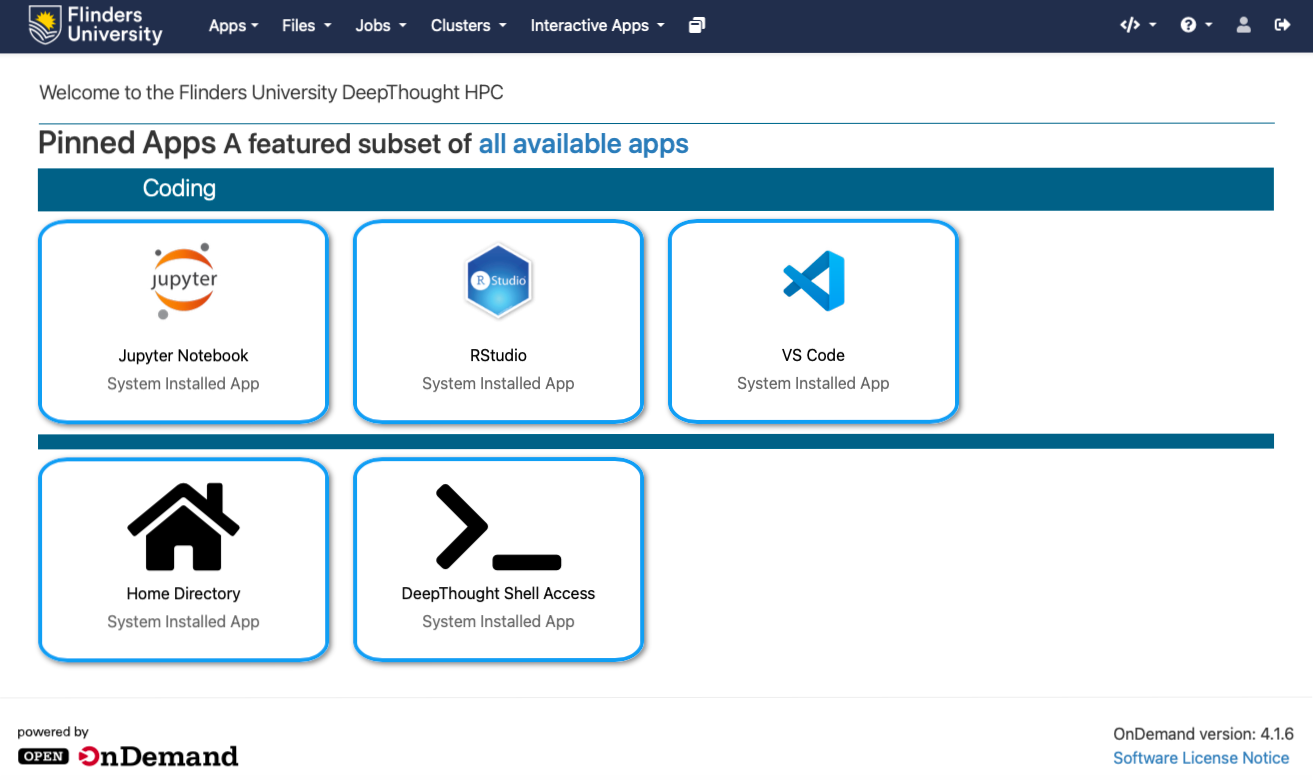
A connection to the web portal is also available via Citrix VirtualApps as ‘DeepThought HPC’ and is automatically assigned to anyone with access to DeepThought. The connection via VirtualApps is provided through Google Chrome hosted on our internal servers and can be accessed without requiring the VPN.
Connecting using Secure Shell (SSH)
Linux, Apple macOS, and Microsoft Windows now all generally (with some exceptions if you’re using a build-your-own distribution of Linux) include the OpenSSH client by default which means you can connect using the terminal/shell that is included in your operating system without the need to install any additional software.
Note
The screenshots below were captured on macOS but the process is the same for all operating systems
To connect, open your local terminal/shell app (Terminal on Linux/macOS, PowerShell/Windows Terminal on Windows) and type
ssh fan@deepthought.flinders.edu.ausubstituting your Flinders Authentication Name (FAN) where it saysfan:

If this is your first time connecting to DeepThought, you will be prompted to accept the identification certificate of the server (type
yesand press Enter/Return to accept the identity of the server):

Accepting the certificate saves a copy of it in your ~/.ssh/known_hosts file and the SSH client will let you know if the key changes in the future.
Once the identity has been accepted (or immediately on subsequent connections if the identity was already accepted) you will be prompted to enter your password to connect. Type your password (noting that many terminals do not show the number of characters being typed for security reasons) and press Enter/Return:

Note
This password is the same as the one you use to log in to Flinders Okta
After your password is accepted, your terminal should change to show that you’re logged into hpc-login01p (the actual name of the HPC login node) as your FAN:

Connecting using External Software
Several external applications and code editors such as VS Code allow you to remotely connect to another server to use more resources than are available on your local computer. These applications do not understand how the job scheduling system on DeepThought works and will attempt to use resources directly on the Login Node.
Note
Control groups have been put in place on the Login Node to prevent these applications from being able to inadvertently impact the experience of other users. Each user is restricted to 4 CPUs (2 Core/4 Thread) and 16GB of RAM as you can use interactive sessions via SLURM if you require more
If you wish to use VS Code on DeepThought we encourage you to use the version available from the Open OnDemand Web Portal as it is provisioned using SLURM and can fully access the resources you request.
Notes and Considerations
DeepThought has an extended timeout on SSH sessions and they will effectively stay connected indefinitely as long as your computer’s network stays active. Your session can still drop out if you lose network connectivity (e.g. from your laptop going to sleep or losing Wi-Fi signal) so you may find it useful to use some form of terminal multiplexer like tmux to ensure that any commands you had continue to run even if the connection is interrupted.
If you will be connecting to DeepThought frequently you may wish to use key-based authentication instead of password-based authentication. The process is slightly different on Linux/macOS and Windows but the general idea is the same and is supported on DeepThought.
Important
Please note that if you connect to DeepThought using key-based authentication it will not generate the credentials required to access the R Drive automatically so we would suggest just connecting using your password if you are intending to perform file operations.