Introduction to Linux
Linux is an Open-Source Operating System commonly used on servers. DeepThought uses the RedHat Enterprise Linux (RHEL) distribution and has been specialised to provide computational services and software.
Linux Basics
This guide is intended to cover the basics of using a Linux (specifically via a text terminal) for people who have little to no prior experience with Linux.
Command Line Interface
Linux on DeepThought is accessed through a text-based Command Line Interface (CLI) and does not support a full Graphical User Interface (GUI).
Because there isn’t a graphical representation of the elements of the operating system (the way there is on a desktop or laptop that uses macOS or Windows), text symbols and characters are instead used to help structure the interface.
Terminal Prompt and Shell
The first thing you’ll see when logging into a Linux terminal is the prompt:

This differs by distribution and shell but it usually displays information about the logged in user, the name of the computer you’re using, which directory you’re currently in, whether your shell is a regular or admin shell and then finally an interactive text input.
Breaking down the example above, the logged in user is whit0782, the computer connected to is hpc-head01, the prompt is currently in the home directory (denoted by the ~), the prompt is a non-admin prompt (denoted by the $ at the end) and the terminal is waiting for input (the solid dark magenta block).
While the default prompt formatting on DeepThought will cover 99% of use cases, it’s possible to adjust the information displayed. Some examples of how to customise your prompt can be found from Arch Linux and RedHat.
The Unix Shell defines the look and feel of the terminal as well as the functions it supports. The prompt mentioned earlier is a function of the overall Shell and different Shells may provide additional options or formatting switches.
DeepThought uses bash (Bourne Again Shell) as its default Shell (similar to most Linux distributions) but there are many other Shells such as zsh (default on modern macOS) and tcsh. You can check which shell is currently being used by running the echo $0 command in the terminal:

Note
User accounts on DeepThought are provisioned from the network rather than as local users so the chsh utility to change the default shell is not available. If you have a preference for a certain shell you will need to modify the equivalent bash configuration files in your home directory to initialise it after login as it will load those first each time.
Home Directory
When you first connect to DeepThought, your terminal will place you in your home directory by default. Your home directory is specifically for your own use that only you can access and you can use it to store files that will be accessible to the rest of the HPC.
As mentioned previously, your home directly is represented by ~ on the prompt and this can also be combined with other commands (see below) to quickly access files and directories in it regardless of where your prompt is located.
Basic Commands
You can run commands in your Shell prompt by typing the command and pressing Enter/Return.
The ls (list directory contents) command will show you the files and directories in your current working directory:

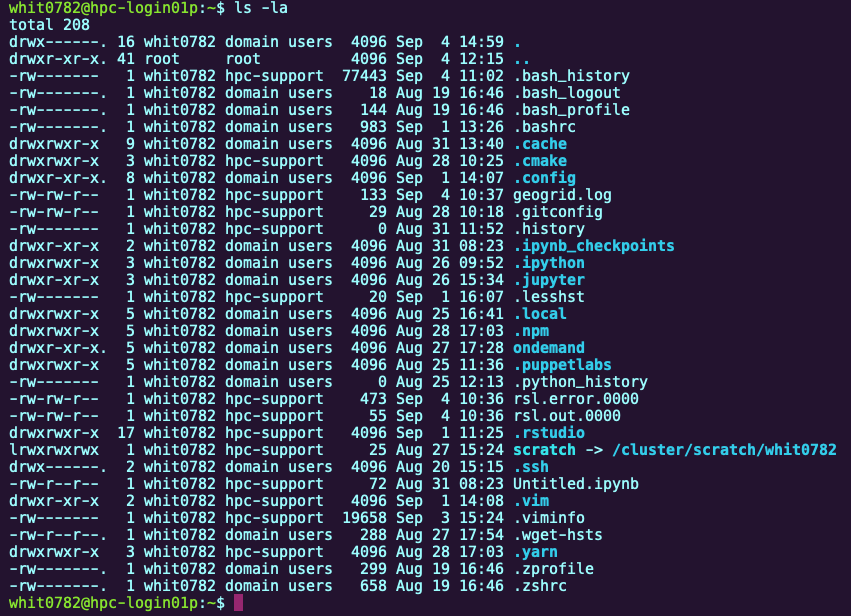
The ls command (like most commands) can also take additional command switches to show all files (including hidden files) and their extended information using ls -la (list directory contents, long list, all files):
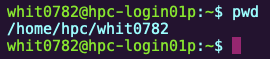
The pwd (print working directory) command will show you the full path of the current directory that the prompt is currently located in:
Most commands accept some sort of argument after the command name which changes the context in which they operate. For example, you can also use the ls command to show the contents of a different directory by adding the directory path after the command i.e. ls / would show you the contents of the / directory:

You can change between directories using the cd (change directory) command e.g. cd / will move your prompt to the / directory (which is represented by the / after the computer name in the prompt):

If you run cd without any arguments it will change your prompt back into your home directory. You can also use .. as a shorthand for ‘go up one level to the parent directory’, similar to ~ representing your home directory.
Tip
You can combine these together into commands such as cd .. moving the prompt to the parent directory of the current directory or cd ~/Documents changing the prompt to the Documents directory inside your home directory.
The system has built-in manuals for each of the commands that you can access by running man <command> (e.g. man ls for the list directory contents manual).
Files, Directories and Permissions
Using the ls (or ls -l) commands mentioned above will show you lists of directories or files with the directories highlighted in bold and files in plain text to help easily differentiate them.
File extensions (such as .txt or .sh) are sometimes used to make it easier to see what a file is for at a glance but they don’t actually change anything about how the file works. For the purposes of being opened and read, a text document still contains the same contents regardless of whether it has the .txt extension or not and can be opened by the same applications.
In order to access or modify files and enter directories, you need to have permission to access them. The file systems we use separate this out into different permissions for owning user, owning group and other with the permissions available being read, write and execute.
For directories:
readpermission lets you list the attributes and contents of the directorywritepermission lets you modify/delete the directoryexecutepermission lets you enter/traverse the directory
For files:
readpermission lets you read/access the contents of the filewritepermission lets you modify/delete the fileexecutepermission lets you run the file (used by applications and scripts)
Using the example of the ls -l long list command from the previous section, we can see the permissions represented on the demo directory as the first part of the output:
drwxrwxr-x 2 whit0782 hpc-support 4096 Sep 4 15:17 demo
In this case, the entry is a directory (d) at the start of the list, the owning user is whit0782 and has read, write and execute permissions (rwx), the owning group is hpc-support and also has read, write and execute permissions (rwx) and then all other users have read and execute but not write permissions (r-x).
This means that the user whit0782 and the group hpc-support have full access to the directory while everyone else can only move into the directory and list the contents. Permissions can be changed on the directories or files as long as you have the write permission to the directory or file through any of the user, group or owner permissions.
Permissions are not automatically inherited from the parent directory so if whit0782 did only has r-x permissions to the files inside the directory then they could see the files but not modify them despite being able to modify the directory.
Note
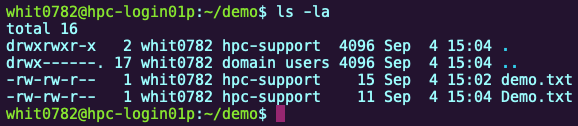
The Linux file systems we use are case sensitive so as far as the operating system is concerned, Demo.txt and demo.txt are two different files:
Tab Completion
To make it a bit easier to navigate around the command line, Linux shells include the ability to expand on partially typed phrases by pressing the Tab key (called Tab Completion). This lets you quickly expand out the full path of a directory without having to type the full name of each segment:


In the example above, the path and first three letters whi were typed and then Tab was pressed and automatically filled out the remainder of whit0782.
If there are multiple potential matches (or not enough information such as no text), pressing Tab won’t automatically expand the phrase (because it doesn’t know what you want to select) but instead will display a list of all the potential options available:

Note
Tab Completion is case sensitive and will only find exact matches to the case of the word e.g. fin would locate and display the find command but Fin would not
Environment Variables
Environment Variables are a special word or phrase that contains other information (such as letters, numbers or values) that can be substituted into commands or test strings. These phrases can have the contents automatically updated based on context allowing them to dynamically adjust the output of the command or string that is being used based on the changing values stored in the variable.
System environment variables tend to be in all capitals such as $HOME (the home directory of the current user) or $USER (the name of the current user). The variables themselves are just the word (e.g. HOME) but require the $ in front of the name of the variable so that the system knows that it’s looking for a variable instead of just the letters.
As an example, running a command such as echo $SHELL will print the current shell to the terminal (e.g. /bin/bash) and if the shell were to change then the same variable would return the new value with the same command (e.g. /bin/sh).
You can store information in your own variables by entering the name you want the variable to be called, the equals sign and then the information you want to be stored in the variable e.g. Hello="World" would create a variable you can use as $Hello that would return the word World when used with something like echo.
Tip
It’s best practice to store plain text explicitly as a string by adding double quotes (") to the beginning and the end (e.g. the above example of Hello="World". This also lets you easily store values containing spaces without relying on interrupt characters (see Searching and Text Strings below for more detail.
Applications and PATH
Applications (also known as binaries or binary executables) consist of a single file that can be run (or executed). In order for binaries (and scripts) to be able to be run directly, you will need to have the execute permission set on them for either user, group or other.
Note
If your shell is in the same directory as the binary or script you are trying to execute, you will need to add ./ before the name to indicate that it is here and to run it e.g. ./hello_world.sh
Linux shells use the PATH variable to locate application files so that you can run them directly by name rather than having to know the full path to where they are located. The PATH is automatically populated by the system and like other variables you can see what is currently in it by running echo $PATH.
Our module load system Lmod automatically adds working folders to the PATH for you when you load modules to make it easier to get the software in the module working:

Editing Text
One of the most common things that you’re likely to do on a Linux command line is to edit text files. Text files might be used as the inputs for the calculations that you want to run or you might be writing the actual script files to submit your compute requests to the HPC.
For anyone just starting out, Nano is the easiest no-frills editor available for editing basic text. As an example, you can open a text file called demo.txt in nano by running the nano demo.txt command:

Nano will take over the current terminal window with its own interface similar to the following screenshot:
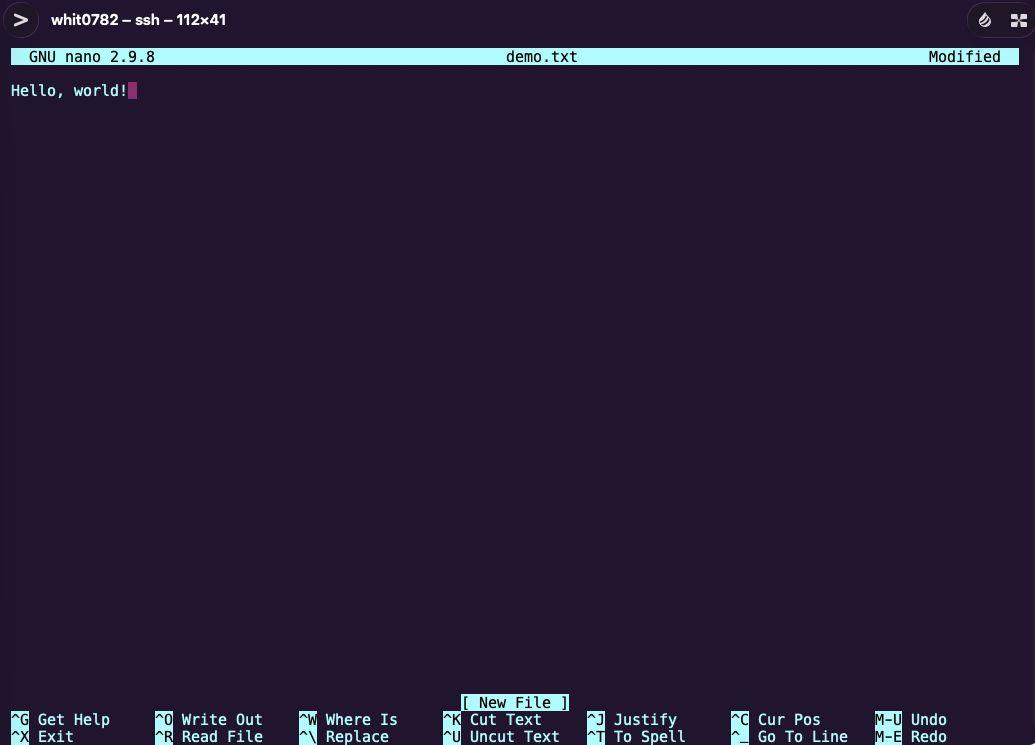
Use the keyboard arrow keys to move the cursor around, manipulate the text as required and then press Ctrl+x to save and exit (the ^ symbol in the Nano menus means to hold the ‘Ctrl’ key along with the respective letter key which doesn’t need to be capitalised regardless of how it looks):


If you feel that you want to do more than just basic editing, two of the most popular options are Vi Improved (vim) and Emacs.
Searching and Text Strings
As you build up a collection of files you will likely want to be able to quickly and easily search through them based on specifics, particularly when you’re looking through computational outputs. There are several ways to search both for files by name and through the contents of files from the command line but getting the syntax right can be a bit tricky.
If you know the name (or part of the name) of the file you’re looking for, you can use the find utility to search for it:
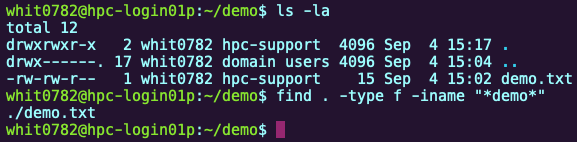
In this case, we’re trying to find a file called demo.txt which is located in the current directory. We can break down the search command find . -type f -iname "*demo*" as follows:
find at location searching specifically for files (excluding directories) with a name that includes the case-insensitive text string “demo”.
The command returns ./demo.txt which means ‘a file matching the search criteria was located here (. means “here” or the current working directory).
The * is a wildcard substitution that means ‘any number of text characters’ so in this case we’re saying it doesn’t matter what text is before or after the word “demo”. If you were to just enter demo without the * then you would return no results as the .txt is present at the end of the filename after demo and makes the match invalid.
To search for text in a specific file you can use the grep utility. The demo.txt file contains the text string “Hello, world!” so we could locate it using the world hello with grep -Hir hello *:

Without any command switches, grep will simply return the contents of the line that the string you’re searching appears on. In this case, we want to know the file name as well so we’re using the -H switch (show file name) along with -i (case insensitive) and -r (recursively search through the current directory and any directories inside it) to search for the string hello in any file (using the * wildcard) in the current directory and any directories inside it.
In the example above, the query returns the name of the file (demo.txt in dark magenta) along with the line that contains the matched string (which it has highlighted in red). The file is in the current directory (so only the file name is displayed) but if the result is in a sub-directory then the path relative to the current working directory will be displayed before the file name.